

The issue “The source and destination file names are the same”
If your users are using OneDrive sync to interact with files in Microsoft 365, and there is a complex or deep folder structure, you have more than likely experienced this Windows File Explorer dialog.

You probably ask yourself, what does “The source and destination file names are the same” even mean? And honestly, I have no idea. If you have ever had to troubleshoot this issue, you have probably found a plethora of information out there about file and folder path length, MAX_PATH, OneDrive sync limitations, etc.
In this article, we are going to dive in a little deeper to get to the bottom of this issue and how to resolve, or even better, avoid altogether.
The limitation of 260-characters on the file or folder path
Did you know there is a 260-character limit on the file or folder path in Windows by default? You probably knew before you read the first part of this article. This is a Windows operating system limitation. This is NOT a OneDrive sync client or SharePoint Online limitation. I won’t go into the history of this limitation, but you can read more about it in the following article. I also encourage you to review the last section of this article, “Is the issue OneDrive sync or File Explorer?“, which demonstrates limitations when using Windows 11 File Explorer with long paths enabled.
https://learn.microsoft.com/en-us/windows/win32/fileio/maximum-file-path-limitation
Simulating this issue in Windows 11
Let’s dive in and reconstruct this issue in File Explorer using a Windows 11 Pro computer. The following folders and file name were created in File Explorer under the OneDrive folder C:\Users\AdeleVance\OneDrive – Contoso.
- Parent-This parent folder is 50 characters——-
- Subfolder-This subfolder name is 75 characters—————————-
- Subfolder-This subfolder name is 100 characters—————————————————-
- File-This filename is 50 characters long———.docx
- Subfolder-This subfolder name is 100 characters—————————————————-
- Subfolder-This subfolder name is 75 characters—————————-
The file path in this example is over the 260-character limit. When we attempt to open the file in Windows File Explorer, we get the following dialog box.

Using the following PowerShell script, we can confirm the file above is over the 260-character path limit.
NOTE: You can use this script to determine if there are any files or folders over the 260-character path limit in your environment(s) for troubleshooting purposes. You can also update this script to check for files or folders approaching the 260-character path limit, over 175 characters for example, as a proactive measure.
cd $env:OneDrive
Get-ChildItem -r * | Where {$_.FullName.length -ge 260} | select-object @{Name="Name";Expression={$_.Name}},@{Name="Type";Expression={if($_.GetType().Name -eq "FileInfo") {"File"} else {"Folder"}}},@{Name="FullPathName";Expression={$_.FullName}},@{Name="PathLength";Expression={$_.FullName.length}},@{Name="FolderDepth";Expression={$_.FullName.Split('').Count-4}}
Here is the output from the PowerShell script on the Windows 11 Pro computer. This script outputs the filename, the type of file or folder, the full path, the path length, and the folder depth from the C:\Users\AdeleVance\OneDrive – Contoso folder.

Long paths, a potential resolution?
So now that we have confirmed the file is above the 260-character path limit, how do we resolve this issue? We can buy ourselves some “wiggle” room by enabling long paths in Windows 11 Pro. In short, the Windows API has a maximum length for a path, called MAX_PATH, which is 260 characters. Per the article below, we are going to enable long paths on the Windows 11 Pro computer in the simulation.
https://learn.microsoft.com/en-us/windows/win32/fileio/maximum-file-path-limitation?tabs=registry
Using regedit, we manually enabled the LongPathEnabled setting per below.
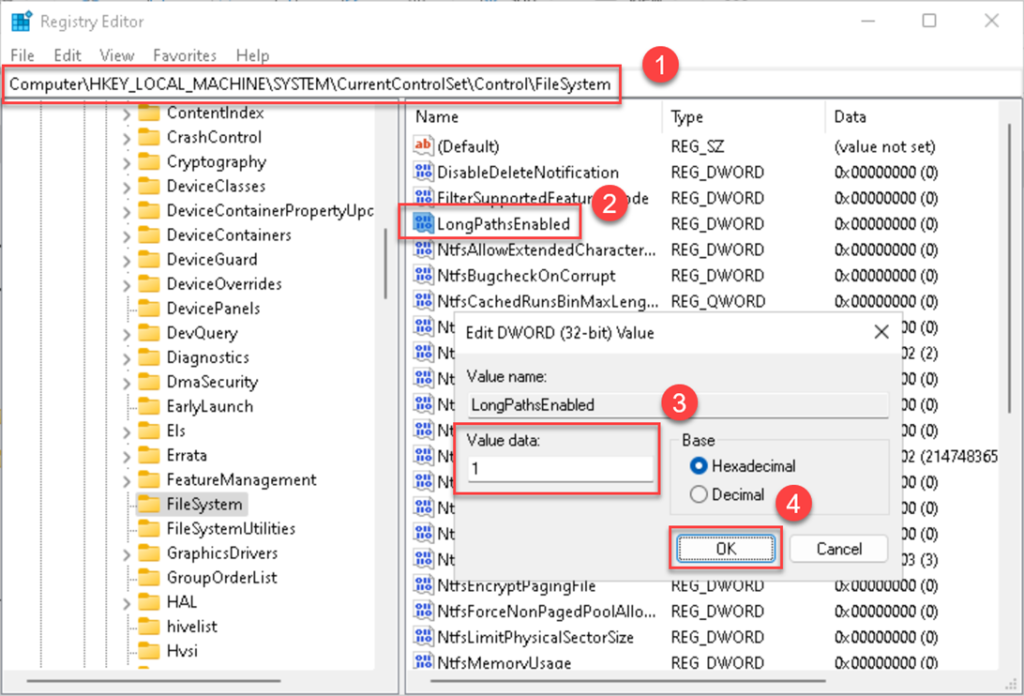
Now, we are going to reboot the Windows 11 Pro computer for the settings to take effect.
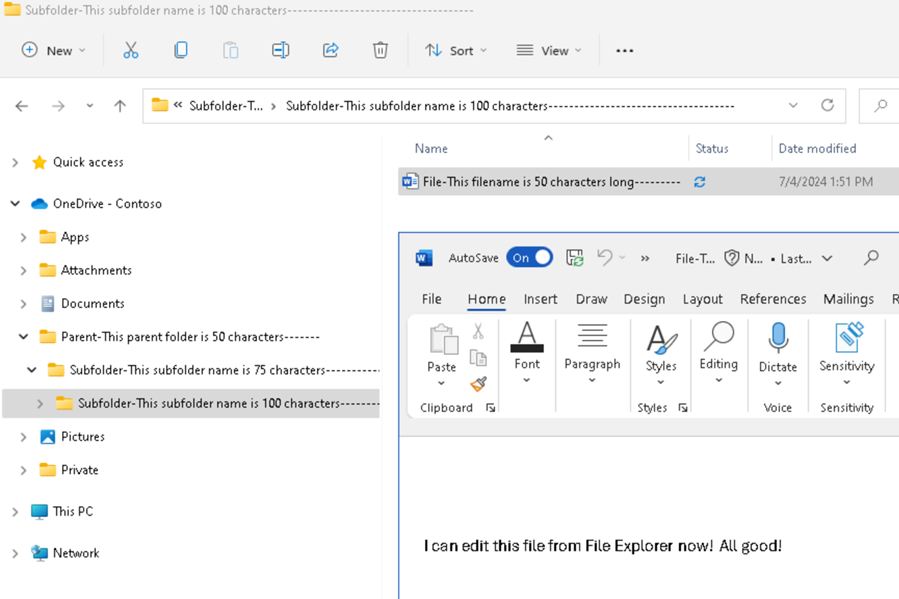
It appears that enabled long paths in Windows resolved the issue with editing the document from Windows File Explorer. So, are we good right? Well, not really.
Working with long paths enabled
Now that we have enabled long paths in Windows, let’s see what happens when we try to create a folder in File Explorer at the same level as the file had issues with previously.

Destination path too long? I thought we just enabled long paths in Windows? So, we can’t create a folder, but can we create a file?


That’s strange, Windows File Explorer reverted to the default name when you create a new Word document. This is not the filename we wanted to use. If we can’t rename in Windows File Explorer, can we rename in OneDrive web?

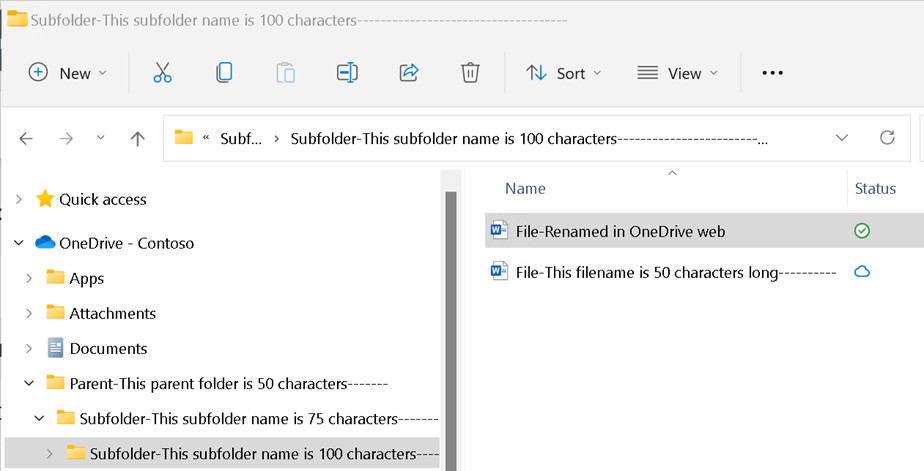
Yes, we can rename the file in OneDrive web, and the change was synced in File Explorer by OneDrive sync. So, we can edit existing files over the 260-character path limit in File Explorer, but we can’t create new folders or files. Further, we can browse, open, and edit files over the 260-character path limit by creating a new folder and file in OneDrive sync, as shown in the following example.

In summary, you can browse and edit files over the 260-character limit in File Explorer with long paths enabled, but you can’t create files or folders around or over this limit. Do you think this would be an acceptable end-user experience? Would you want to try to explain this to an end-user? I doubt it.
Is there a resolution?
If your users run into this issue, you should consider encouraging users to use a different interface for interacting with OneDrive and SharePoint Online files. How about using Microsoft 365 for the web? Or what about using Microsoft Teams? These interfaces don’t have the same limitations as Windows File Explorer and/or OneDrive sync. OneDrive sync tends to impact the performance of browsing in File Explorer in my experience, but I tend to be a little impatient.
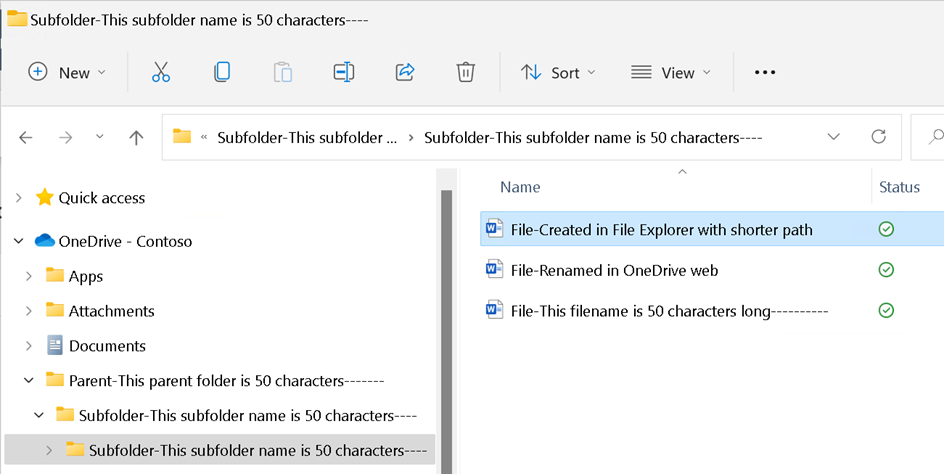
What if the user claims they cannot live without File Explorer? For starters, they will need to shorten the folder and file paths. As an example, let’s consider the simulation we started with. If we simply rename the subfolders with shorter paths, we can create a new Word document using File Explorer. This might be more involved with deeper folder structures, but you can see how quickly we can have File Explorer in a workable state for those users who don’t want to change.
The Call4Cloud blog article below provides several other methods for addressing this issue, such as using OneDrive sync shortcuts, and the Long Path Tool to identify and bulk rename folders and/or files with long paths.
You can also look into transitioning from folders to metadata in SharePoint Online. I love the work SharePoint Maven is doing to educate users on how to properly use SharePoint Online in the long term.
Is the issue OneDrive sync or File Explorer?
After banging around on this in the lab, I thought to myself, “what would happen if the file was outside of OneDrive sync scope?” How would Windows 11 File Explorer react? I recreated the exact same folder structure and file name outside of OneDrive sync scope. And guess what? I couldn’t create a new folder.
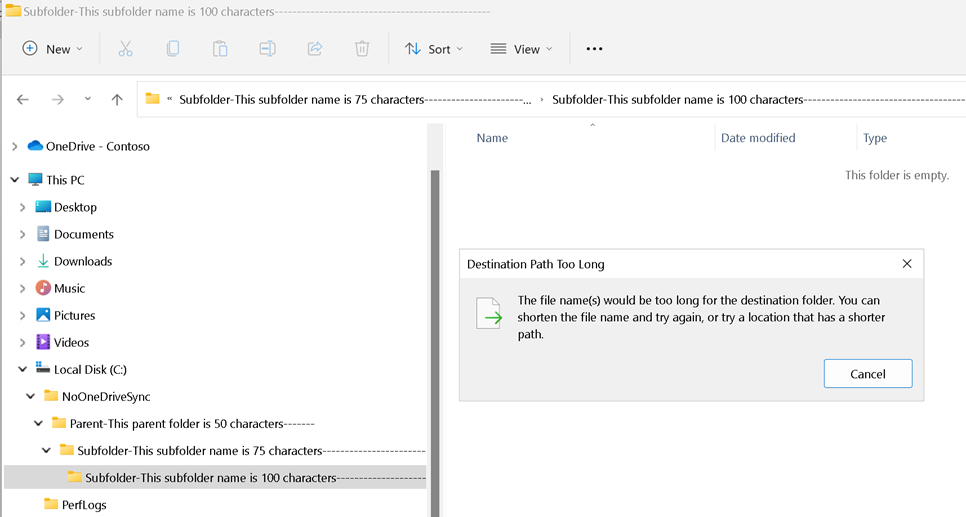
I also attempted to create and rename a new Word document and received a different error, but same result, no can do.
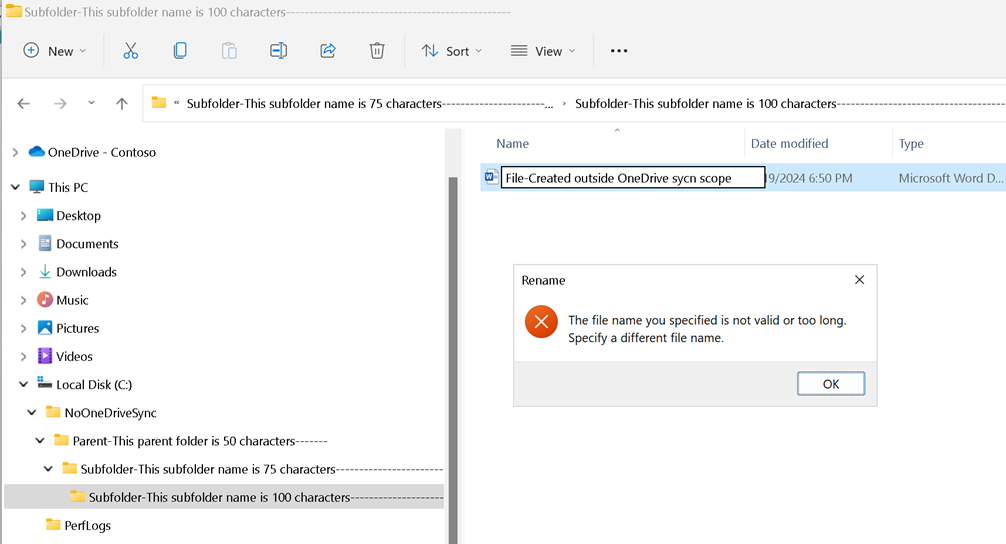
Turns out the issue isn’t actually OneDrive sync, it’s Windows 11 File Explorer. I guess we’ll have to wait for Microsoft to fix it. Ah the joys and headaches of Microsoft consulting! 😊